Caestro · In development / Private beta
From a new idea
to a Space you can return to.
You have a piece of work to organize: a business, a client project, or something you’re doing with other people. Caestro gives it a named Space, with Caesar and the tools for that work in one place.
Give the work
its own Space.
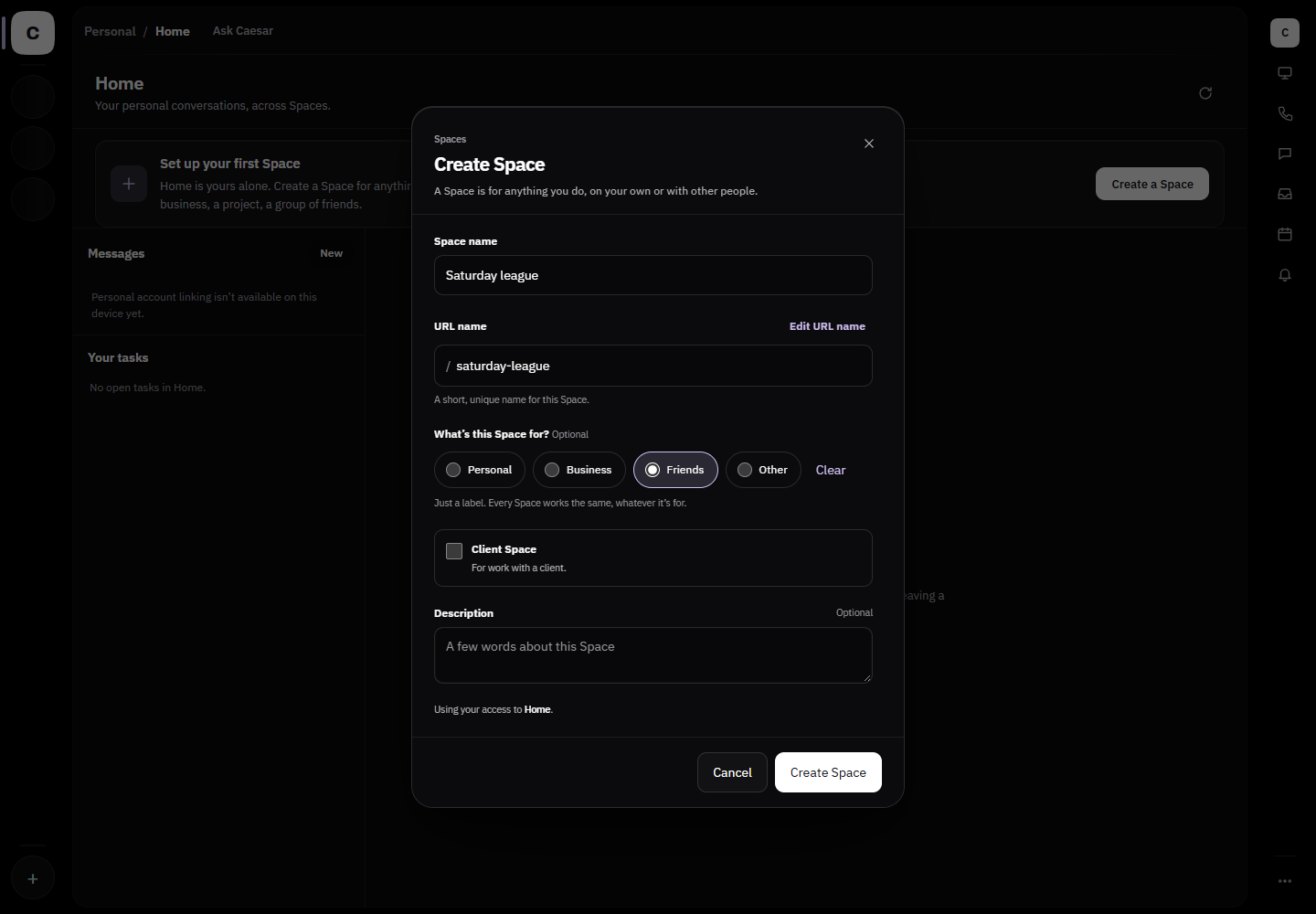
Home is your personal starting point. Choose “Create a Space,” give it a name, and choose a purpose if useful. For work with a client, select “Client Space.”
In this example, the person creates “Saturday league” and chooses “Friends.” The same dialog offers Business and Personal purposes.
Meet Caesar
in the Space.
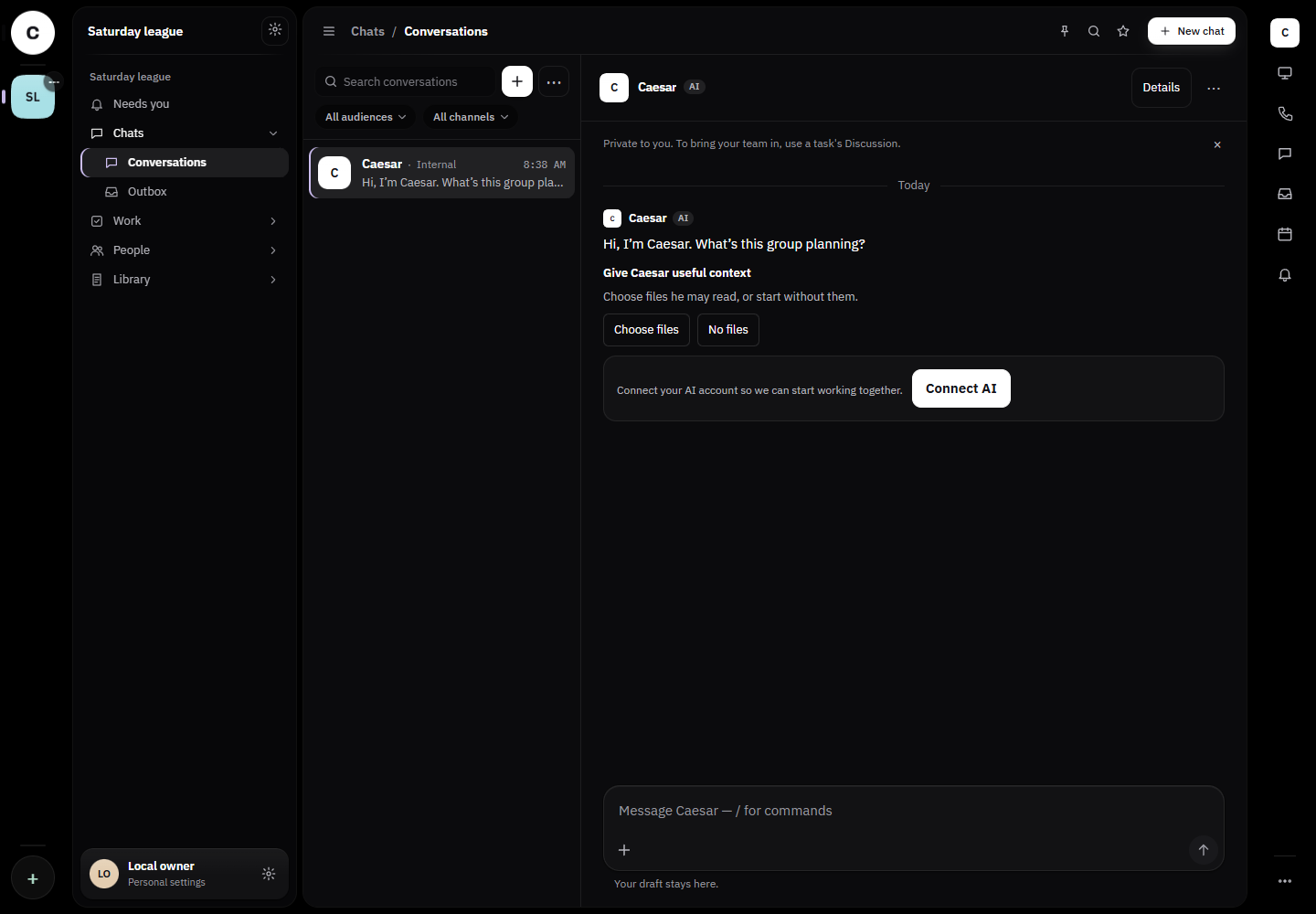
The new Space opens in the navigation. Caesar’s first greeting follows the purpose you chose. Here, he asks what the group is planning.
The conversation offers a choice of files for context and a prompt to connect an AI account. This capture shows the setup; it does not show an agent completing work.
The Space stays
with the work.
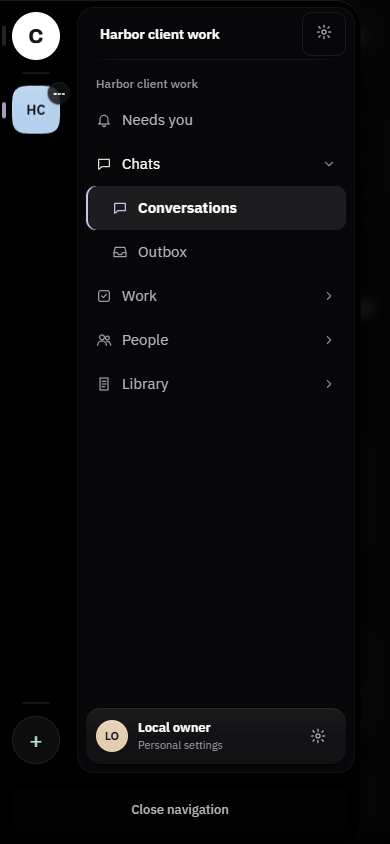
After a reload, the created Space is still available alongside Home. You can switch to Home, then reopen the Space without creating it again.
The verified result is a saved Space and a place to continue the conversation. Desktop and phone browser checks cover that return flow.
Where the beta stands
A working flow.
More still being tested.
- Caestro is in development and private beta. Ask about access; immediate signup is not promised.
- This workflow was checked against a local beta build with demonstration data. Hosted behavior and the full beta are being qualified separately.
- An AI connection is needed to continue beyond setup. The screenshots do not establish completed agent work or any specific model integration.
- Available features and access may change during the beta.